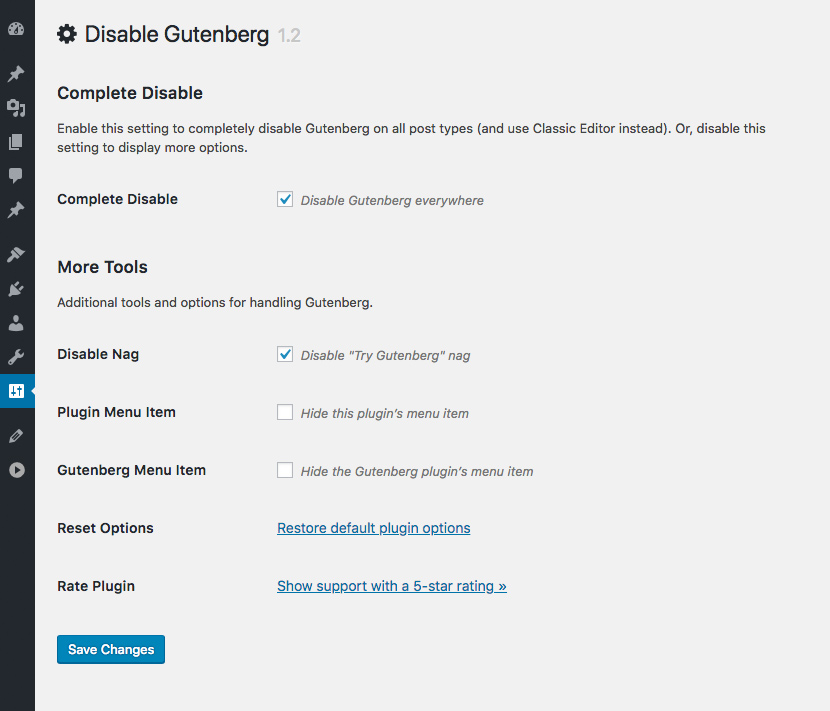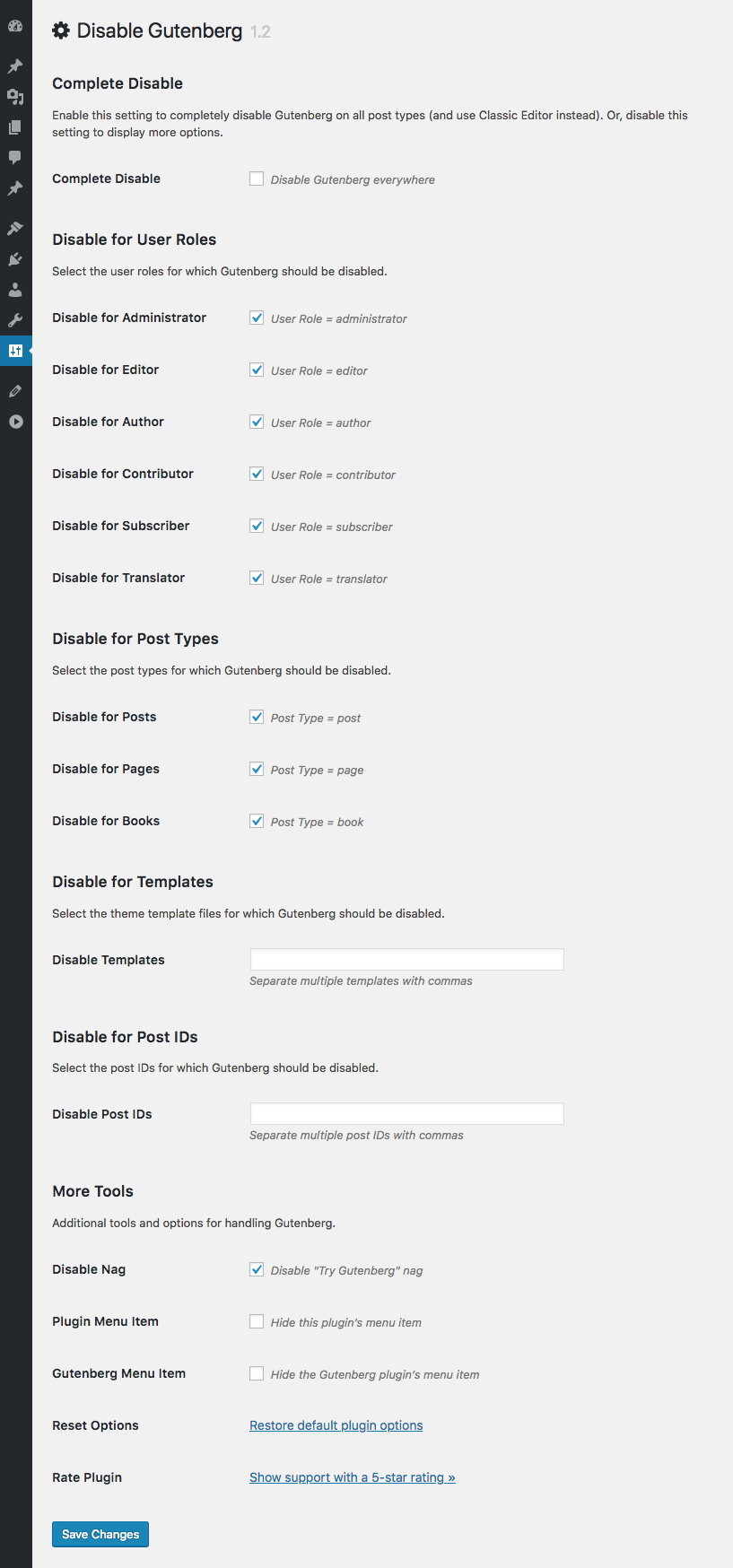

This plugin disables the new Gutenberg Editor (aka Block Editor) and replaces it with the Classic Editor. You can disable Gutenberg completely, or selectively disable for posts, pages, roles, post types, and theme templates. Plus you can hide the Gutenberg nag, menu item, and more!
The Disable Gutenberg plugin restores the classic (original) WordPress editor and the Edit Post screen. So you can continue using plugins and theme functions that extend the Classic Editor. Supports awesome features like Meta Boxes, Quicktags, Custom Fields, and everything else the Classic Editor can do.
Easy to Use: Just activate and done! The default plugin settings are configured to hide all traces of the Gutenberg Block Editor, and fully restore the original Classic Editor. Further options for customizing when/where Gutenberg is enabled are available in the plugin settings.
Fully configurable, enable or disable Gutenberg and restore the Classic Editor wherever is necessary. This plugin does not collect or store any user data. It does not set any cookies, and it does not connect to any third-party locations. Thus, this plugin does not affect user privacy in any way.
Other Notable Features
Here are a few other notable features of this free
Disable Gutenberg plugin.
Disable Gutenberg
Classic Editor
Block Editor
Screenshots
FAQ
Yes. When Gutenberg is active, the plugin disables it (depending on your selected options) and replaces with the Classic Editor. Otherwise, if Gutenberg is not active, the plugin does nothing. So it’s totally fine to install before Gutenberg is added to WP core, so it will be ready when the time comes.
Classic Editor plugin enables you to disable Gutenberg across the board, and replace it with the Classic Editor. The Disable Gutenberg plugin does the exact same thing, in the exact same way, BUT it also provides more granular control over when and where Gutenberg is replaced with the Classic Editor. Disable Gutenberg plugin makes it easy to replace Gutenberg everywhere, OR you can choose to replace only for specific post types, user roles, post IDs, theme template, and more. Check out the list of features and compare them to the alternatives. It’s not even close! 😉
Bottom line: both Disable Gutenberg and Classic Editor plugins are lightweight and enable you to replace Gutenberg with the Classic Editor for the entire site. The difference is that Disable Gutenberg also gives you advanced configuration options including menu hiding and more.
Yes, you can install and activate Disable Gutenberg on any supported WordPress version (see Docs/readme.txt for details). If installed on WP versions less than 5.0 without the Gutenberg plugin active, the Disable Gutenberg plugin simply won’t do anything (but you can still configure settings, etc.).
Yes, if both plugins are active at the same time, Disable Gutenberg gives priority to Classic Editor plugin. So if you want to use Disable Gutenberg, deactivate the Classic Editor plugin (you do not have to remove it, just deactivate via the Plugins screen).
I can’t make any promises, but I intend to develop with WordPress for the long-haul. Who knows what the future holds, but the plan is to keep Disable Gutenberg going for many years to come. Why? Because the original RTE/Visual Editor is awesome. I strongly feel it’s one of the many reasons why WordPress has enjoyed its great success. I’ve been using the original/classic editor for over 10 years now and it’s always been 100% smooth experience. I’ve tried Gutenberg, and yes it is much better now than in previous versions, but for me it’s just not as comfortable or streamlined as the classic editor. So yeah, will do everything possible to keep Disable Gutenberg (and the Classic Editor) going well beyond 2022.
Because it is being promoted by the Gutenberg developers and the “official” plugin for replacing Gutenberg. That’s fine, but understand that Disable Gutenberg functions the same way AND provides way more features and settings. FWIW, I use Disable Gutenberg on my own sites Perishable Press, DigWP.com, Plugin Planet, and many others. 100% solid.
In order for template exclusions to work, the template must be registered with the page itself. The only way to do this is via the “Edit Page” screen, in the “Page Attributes” meta box. There you will find an option to set the page template. Remember to save your changes.
After assigning some templates, they will be recognized by Disable Gutenberg. So to disable Gutenberg on any registered template, you can add them via the plugin setting, “Disable for Templates”. Examples:
Template name is page-custom.php, located in the root theme directory: enter page-custom.php in the Template Exclusion setting
Template name is page-custom.php, located in a subdirectory named templates: enter templates/page-custom.php
In previous versions the default was to show the Gutenberg Editor links. In 1.5.2, the default is to hide the extra editor links. So what I’m guessing happened in this case is that you had a previous version of DG and changed some settings. When you did that, it set the “show edit links” option to the then default, which is enabled. So now that you have upgraded, that saved “enabled” option still applies. Now to fix, you can do one of two things:
Visit the More Tools and disable the option to “Display Edit Links”
Or simply click to Restore the default plugin settings
Either route will get you there.
The default Gutenberg/Block styles are disabled by default when DG plugin is active. To enable/disable the styles, visit the plugin setting, “Enable Frontend”.
So happy this plugin exists. This experienced dev was really getting tired of blocks – especially not being able to have things go where tried-and-true CSS and hooks are able to make them go. Thank you.
PandamusRex
September 12, 2025
|
Annoying that this is still required in 2025
Sometimes the block editor is fine to use, but glad this plugin was made. Cheers.
I have dozens of WP sites I’ve built and manage. This is always the FIRST plugin I install and use. You are a hero. The best invention since the printing press.
Nate
December 7, 2025
|
Normalize / Reset WordPress
For those projects where you don’t need and/or want custom blocks, this plugin is indispensable.
I have dozens of WP sites I’ve built and manage. This is always the FIRST plugin I install and use. You are a hero. The best invention since the printing press.
Nate
December 7, 2025
|
Normalize / Reset WordPress
For those projects where you don’t need and/or want custom blocks, this plugin is indispensable.
I have dozens of WP sites I’ve built and manage. This is always the FIRST plugin I install and use. You are a hero. The best invention since the printing press.
Nate
December 7, 2025
|
Normalize / Reset WordPress
For those projects where you don’t need and/or want custom blocks, this plugin is indispensable.