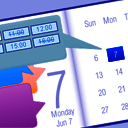
Time Slots Availability & Fast Admin Booking
Manage unavailable time intervals visually from Booking Calendar > Availability or directly from the bookings workflow using the new Time Slots Availability popup.
Administrators can choose a date range and block or unblock exact time intervals in an interactive timeline. The timeline clearly shows available, booked, unavailable, and full-day unavailable states, making it much easier to understand real availability at a glance.
Administrators can also create a new booking directly from an available time interval. Simply select an available time slot in the popup, open the booking form with the selected resource, date, start time, and end time already prefilled, and save it as a new booking.
This makes Booking Calendar especially useful for appointment scheduling, service bookings, consultations, rentals, and any workflow where administrators need to quickly review availability and create bookings from the WordPress admin panel.
Setup Wizard!
– Easy Time Appointments Configuration for your Bookings
– Set up appointment booking system in less than 2.5 minutes. Designed with a user-friendly flow, the wizard takes you step-by-step through key settings, including booking type selection, calendar appearance, availability preferences, and more. This step-by-step setup helps you get your booking system ready for your business quickly and easily.
Set Days Availability
– Super easy set available/unavailable dates in calendar with just three mouse clicks.
– In Booking Calendar you can define days as available or unavailable in just a few clicks. Simply select a range of days on the calendar, choose ‘available’ or ‘unavailable’ status, and apply. It’s that simple!
General
– Modern and easy to use interface.
– The plugin is designed for a vast array of businesses.
– 100% mobile-friendly and looks amazing on any device.
– Booking details are stored in your WordPress database. You don’t need other accounts.
– Multilingual support. Check all available languages at this page.
Easy to start using
– Booking Calendar is an easy solution to start receiving bookings.
– You can quickly add the booking calendar to your posts or pages using WordPress blocks or shortcodes. Additionally, you can add the booking calendar as a widget to your site’s sidebar.
– Most of the settings come with predefined values and descriptions.
Bookings
– Prevention of double bookings – one booking per day or time slot.
– Alternatively, you can allow unlimited bookings for the same date and time within the same calendar.
– You can enable pending bookings as available in the calendar, which lets you receive multiple bookings for the same date until you manually approve one of them. You can receive as many bookings as you need to and stop receiving bookings on specific dates once you have approved a booking.
Time-Slot Bookings
– Time slot bookings are available in the Booking Calendar Free version, which allows you to receive bookings for available time-slots during a selected day. Customers can select time slots either in a time picker or from a dropdown list, depending on your settings at Settings General page in “Time Slots” section.
Calendar
Select a calendar skin that matches your website design.
Or customize the calendar colors by editing the CSS styles.
Choose to display one or several months in the calendar view.
Easily set the width of the calendar and the number of months in a row, such as 3×2 months.
Choose between single day or multiple days selection mode.
Set the number of unavailable days in the calendar, starting from today.
Specify particular weekdays as unavailable.
Show a legend on the calendar to help visitors understand the status of each day.
Booking Form
Easily customize your booking form fields to capture all the necessary information for each booking. Choose which fields are required and which are optional, and customize field labels as needed. Plus, the booking form includes CAPTCHA support to prevent spam submissions.
Timeline
Timeline view allows you to display all your bookings in a yearly, monthly, or daily view on the front-end of your website, giving your visitors a quick and comprehensive overview of your schedule.
Booking Admin Panel
– Easily manage your bookings with a modern and clear Booking Listing panel or with the intuitive Calendar Overview mode.
– The Booking Listing makes it very simple to find the required reservations. It provides searching by different criteria and immediate results based on keywords.
– Get a complete picture of your schedule with the Calendar Overview in day, week, or month view mode.
– Approve, decline, or edit details in required bookings.
– Print a list of your bookings.
– Get the number of new bookings on the booking dashboard section.
Google Calendar Integration
– Import events from your Google Calendar to the Booking Calendar plugin.
– With just one click, add bookings to Google Calendar from the Booking Listing page using export button near each booking(s).
Sync bookings
– Easily import and export events using .ics feeds or files with native integration with our Booking Manager plugin.
– Import events from various sources, such as Airbnb, Booking.com, HomeAway, TripAdvisor, VRBO, FlipKey, and any other calendar that uses the .ics format.
– Customize parameters such as date conditions and maximum number of items to import in the import shortcodes.
– Export bookings by configuring custom URL for your.ics feed. This feed can then be imported into services that use the .ics (iCal) format, such as Google Calendar or Airbnb, etc…
Email Notifications
Configure email confirmation to be sent to the site administrator and visitors for specific booking actions, such as new booking creation, approval or decline of bookings. You can customize the content and format of the emails, and also change the administrator email address to receive notifications.
Other settings
Customizable date format for your bookings.
Two-click range selection for choosing any continuous range of available booking dates.
Restriction of access to plugin menus for standard WordPress user roles.
And much more… Explore more features in premium versions of plugin.